One additional feature that comes with our Kastell theme (and some other themes of ours as well) is adding floor plans to your properties using the Image Map Pro plugin. Furthermore, 3 of such plans are included in our demo content with Kastell.
One of those plans can be seen on our demo site:
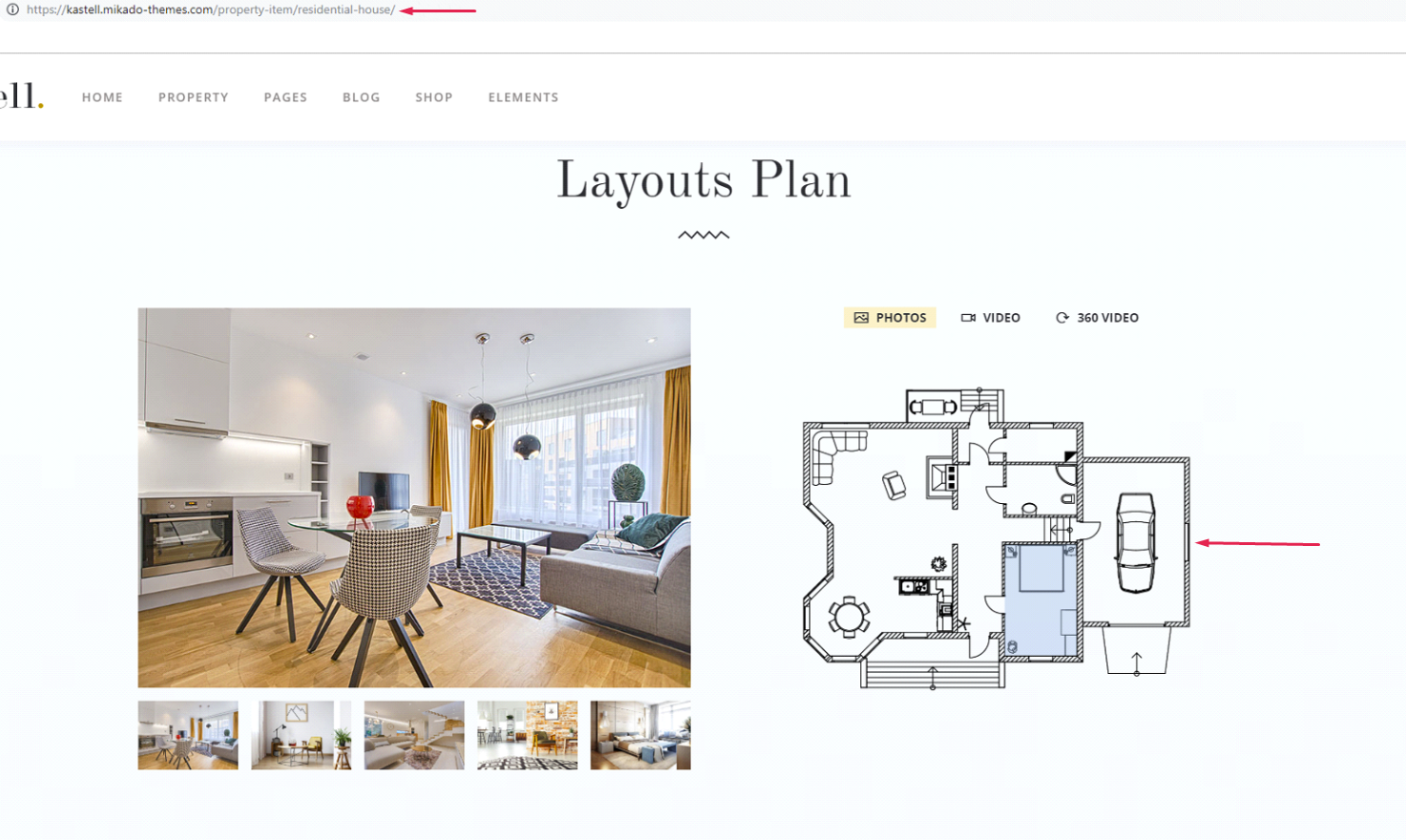
However, it’s important to stress that our demo plans won’t be imported during the import process. Instead, they need to be imported manually afterwards.
Well go through all the necessary steps to achieve this here.
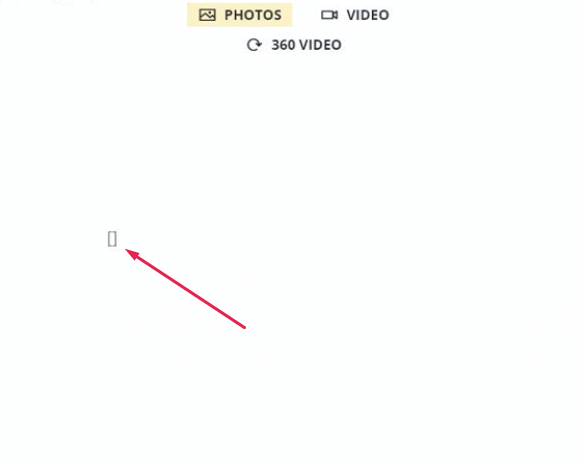
The missing plans are replaced with “[]” brackets upon demo import, and if you notice this there’s no reason for alarm. These will disappear after the plans are properly imported.
Demo Plan Import Steps
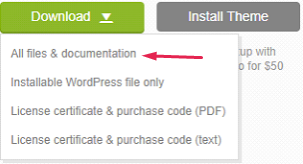
- Make sure that you’ve downloaded the entire theme content by navigating to your ThemeForest account, finding Kastell theme from the dropdown and selecting “All files & documentation”.
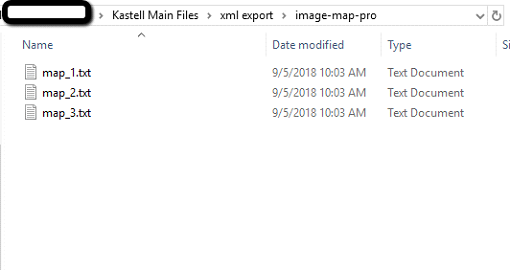
- Open the folder you’ve downloaded and navigate to this path:
Theme Main Files > xml_export > image-map-pro .
There you’ll find three .txt files containing map codes.
- Login to your dashboard and navita to Plugins> Image Map Pro > Import.
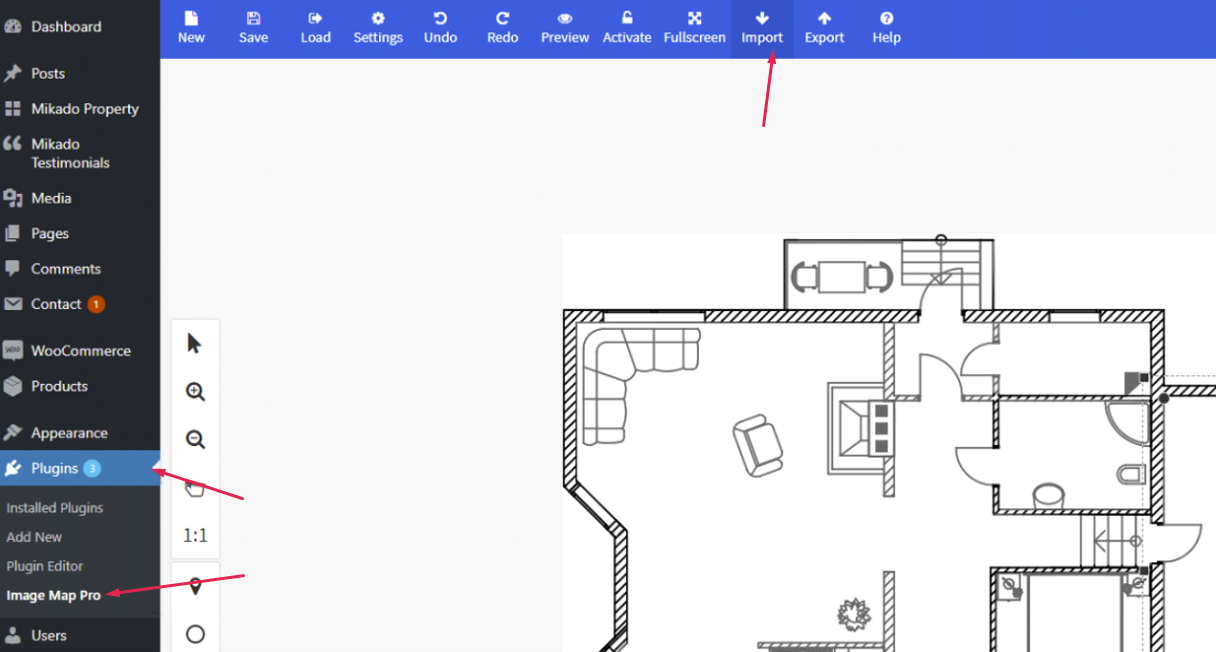
Note that the Image Map Pro plugin needs to be activated in order to perform this step. If it isn’t activated, please navigate to Plugins > Installed Plugins, find the said plugin and activate it. - Open one of .txt files, copy the code, paste it in the appropriate field and click Import.
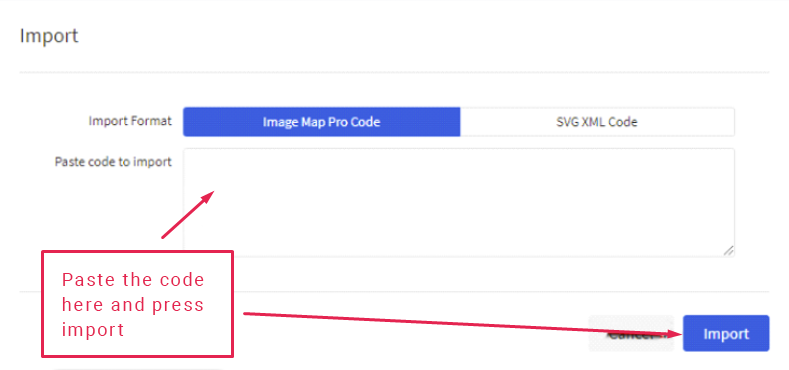
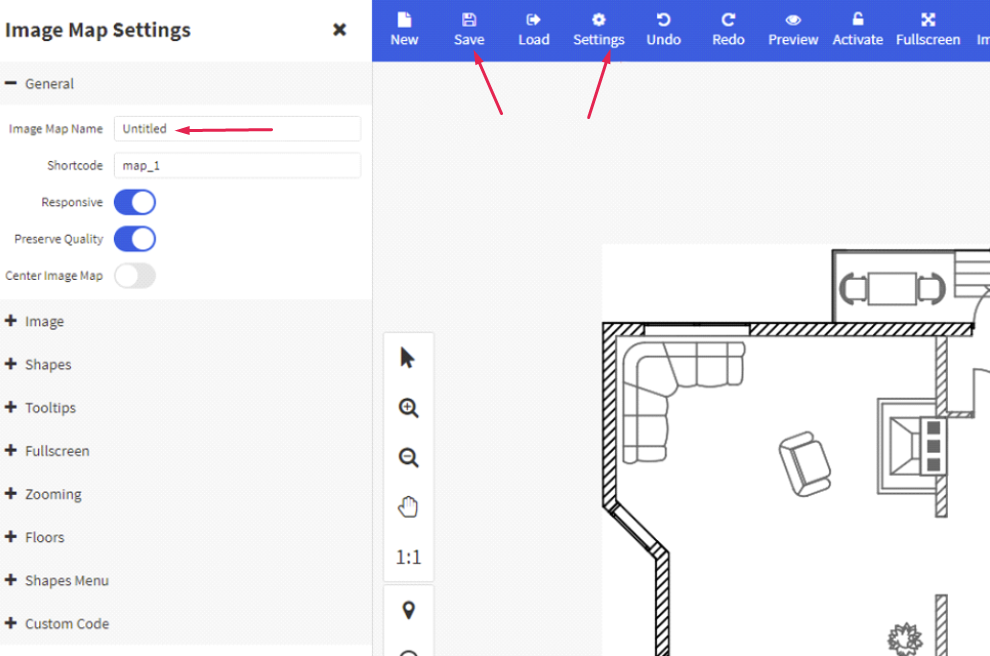
- Make sure you click Save after you’re done with the previous step.
The map name can be changed (the default value is Untitled); you can do this by going to Settings:
- Repeat the steps 3-5 for the remaining two .txt files to import the full demo map content included with the theme.
Maps/Plans in Properties
Adding maps to properties is as simple as it can get; just add the Mikado Map Image Gallery element and select the map from the dropdown.
You should first enable editing properties with the WPBakery Page Builder by navigating to WPBakery Page Builder > Role Manager.
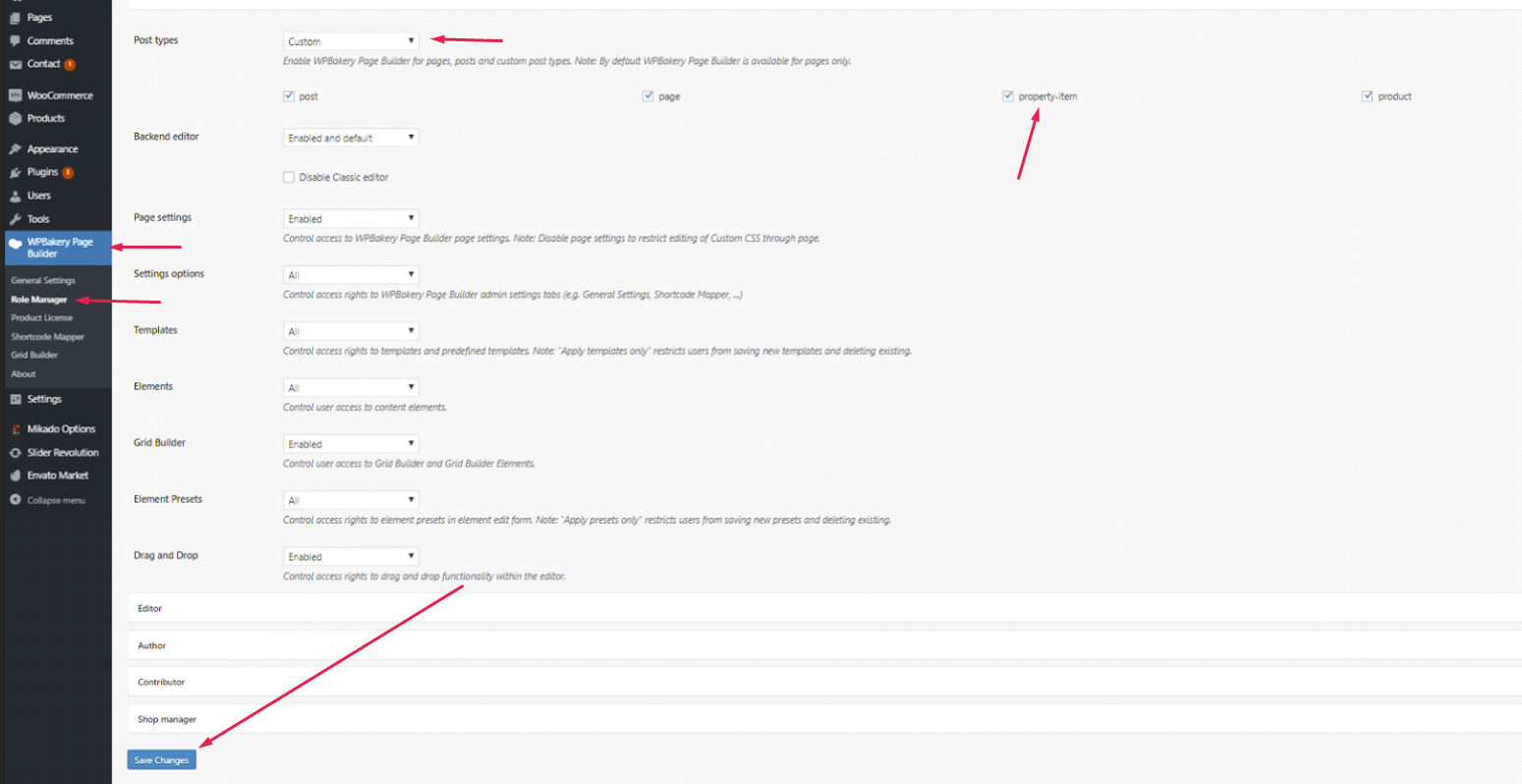
After doing this, locate a property item of your choosing in Mikado Property > Mikado Property and click Edit.
Add the Mikado Map Image Gallery element and select the map from the dropdown in Image Map Name.
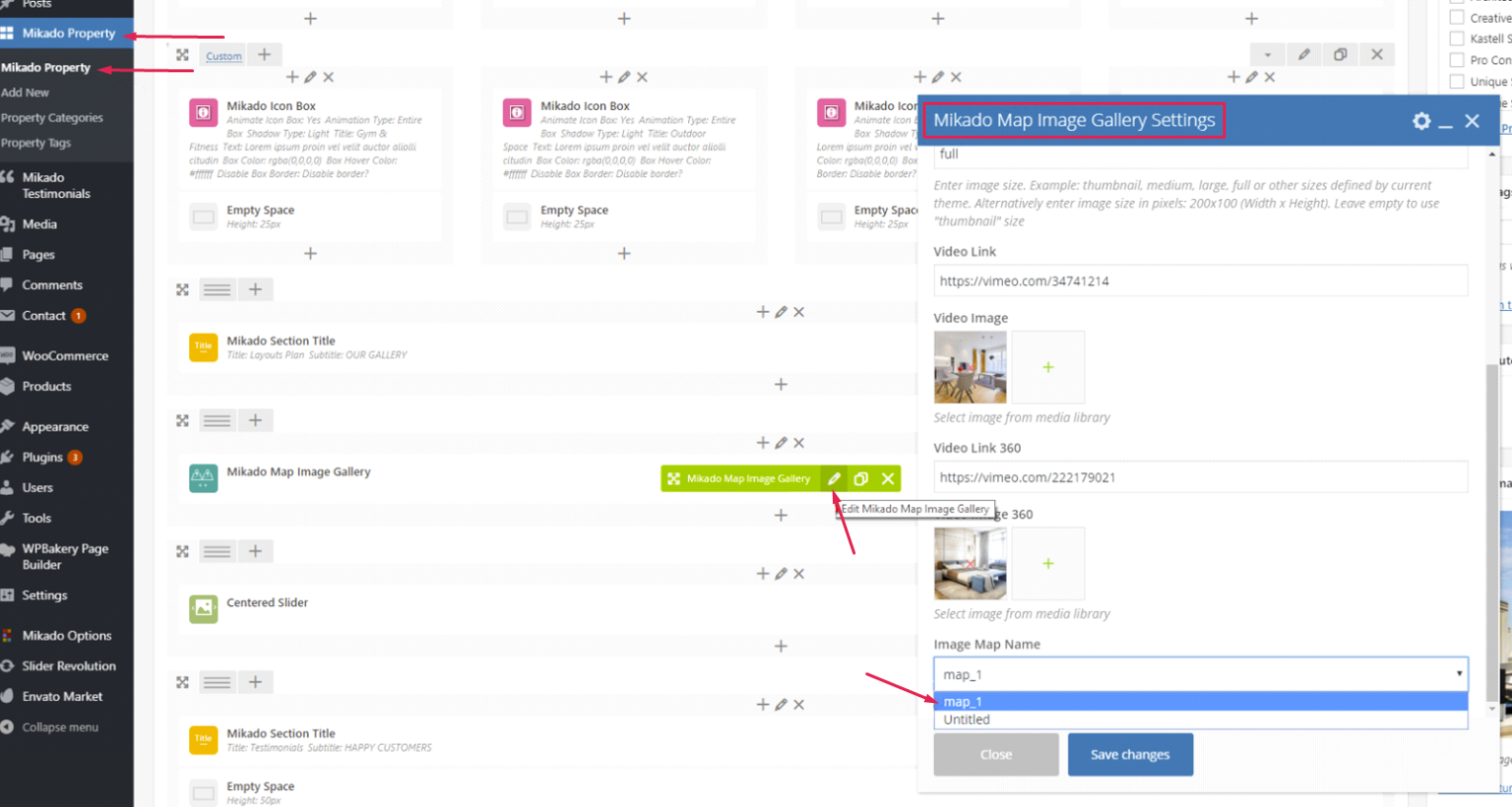
The dropdown contains a list of all available maps, both imported and the created ones.