Unfortunately, there is no option to change the date format for Single Blog Post via the Qode Options. However, it can be achieved with some minor modifications in blog_single-loop.php file which you can find here:
\wp-content\themes\bridge\templates\blog_single-loop.php
Since there are different post formats, date formats can also vary from one post format to another.
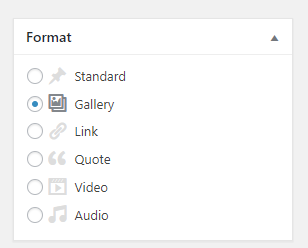
So depending on which one you are using, you can open the code/text editor and search for your post format in the aforementioned file. To locate the code for any of these formats, just search the file for:
case “format_name*”
Instead of format_name you should enter e.g. case “gallery”,or case “video”, etc. - except in the case of Standard blog variation. To search for it, you should just search for default: without the case keyword.
You should be careful about where you make these changes, as all of these six Post Format cases are located within this file. So if you make changes in place for the default (Standard) case, and you are using some other post format, you won’t notice any change was made.
After you’ve made sure you located the right code for your Post Format, you should look for usages of the_time() function and change the parameters in function parentheses. These parameters define the format which is used for displaying date/tame.
Note that Link and Quote post formats are using the_time() function only once to display both date and time at the same place, while other formats are displaying time and date separately; you can see this in the following example which explains how to change both time and date format for the Standard Post Format.
Before:
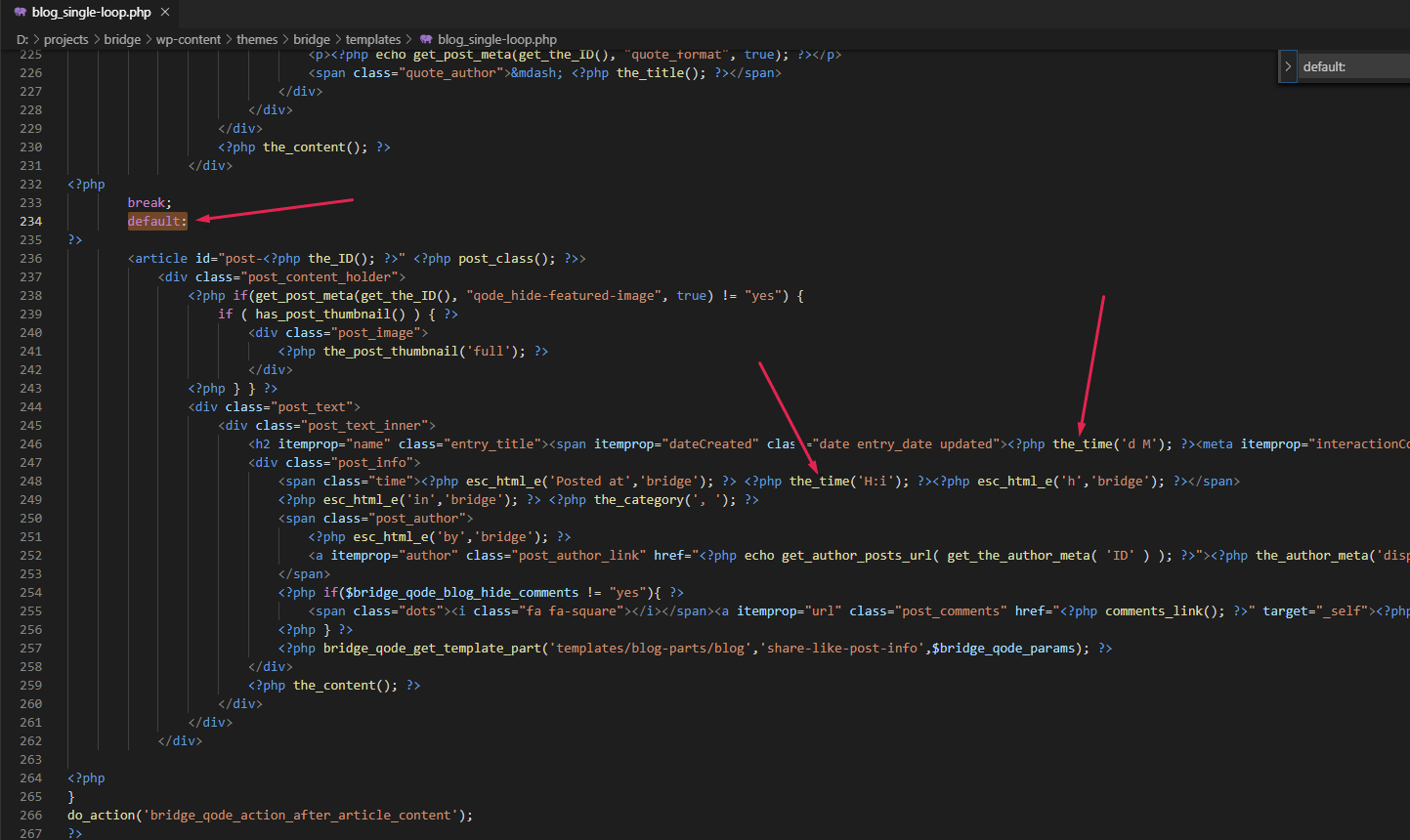

- the_time('d M') was used to display date in the post heading
- the_time('H:i') was used to display date in the post heading
After:
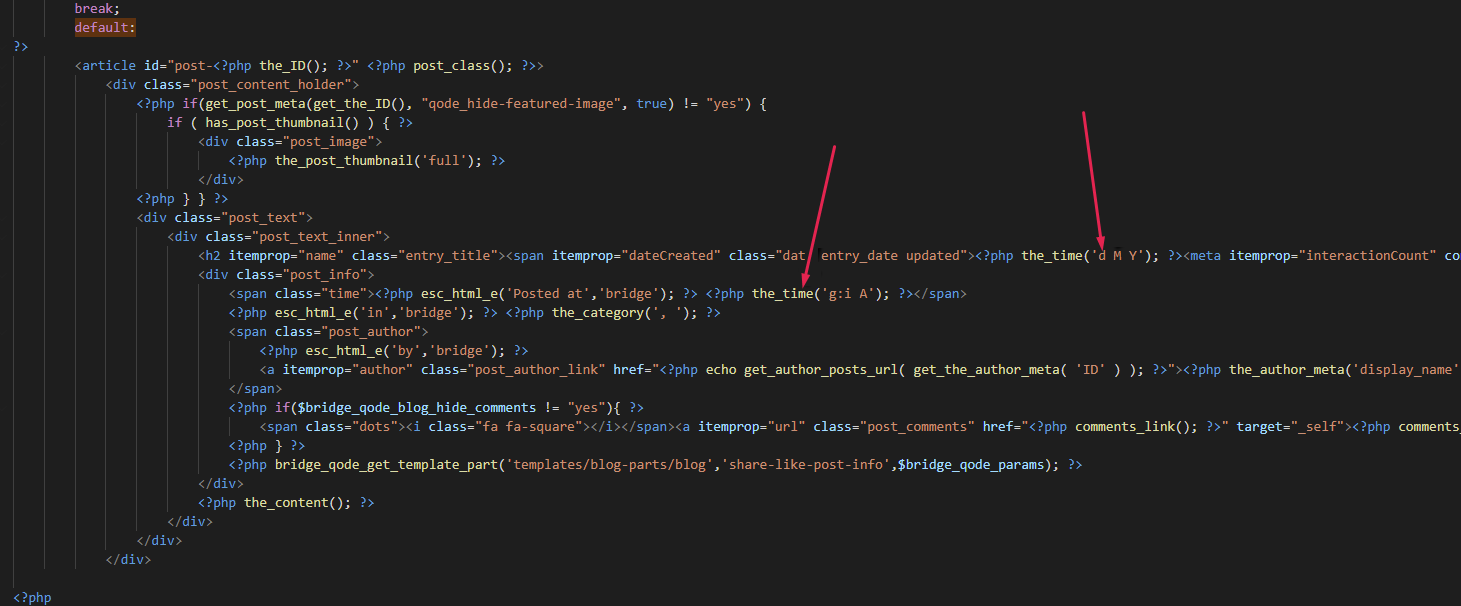

- the_time('d M Y') was used to display date in the post heading
- the_time('g:i A') was used to display date in the post heading
- <?php esc_html_e('h','bridge'); ?> after the_time('g:i A') was removed in order to avoid getting PMh displayed for time
Here are some examples of date formats with their respective result outputs:
- F j, Y g:i a – November 6, 2010 12:50 am
- F j, Y – November 6, 2010
- F, Y – November, 2010
- g:i a – 12:50 am
- g:i:s a – 12:50:48 am
- l, F jS, Y – Saturday, November 6th, 2010
- M j, Y @ G:i – Nov 6, 2010 @ 0:50
- Y/m/d \a\t g:i A – 2010/11/06 at 12:50 AM
- Y/m/d \a\t g:ia – 2010/11/06 at 12:50am
- Y/m/d g:i:s A – 2010/11/06 12:50:48 AM
- Y/m/d – 2010/11/06
You can learn more about different date/time formats in php/WordPress on the following link.
Also note that any of the changes you make directly in our theme’s files would be lost on next theme update, so you should make sure you have backups of these so you can reproduce the changes after updating.
To avoid this, we recommend that you copy this file to the Bridge child theme by recreating the same folder/directory path it is located at in the Bridge parent theme. In this case, that would be:
Parent theme: \wp-content\themes\bridge\templates\blog_single-loop.php
Child theme: \wp-content\themes\bridge-child\templates\blog_single-loop.php
This means that you would have to create templates folder/directory in bridge-child and copy/paste blog_single-loop.php into it.
Then you can use your Bridge child theme and make the changes in this file. This way, when you update the Bridge parent theme, the changes you make won’t be lost.