Alongside the themes whose full demo content can be imported with a single click, there are some themes with multiple demos in our back catalog. The multi-demo themes let you import only the templates and the content from certain demos of your choosing, as opposed to importing the entire demo content.
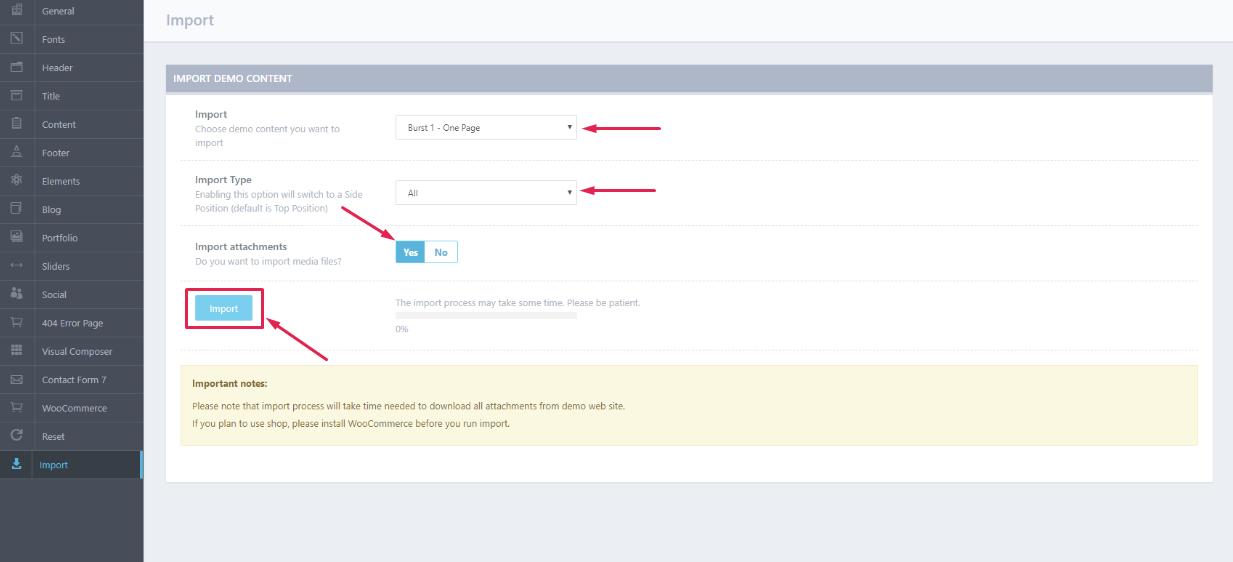
The import process is exactly the same, with one exception: with themes that have multiple demos, you need to choose the exact demo you wish to import.
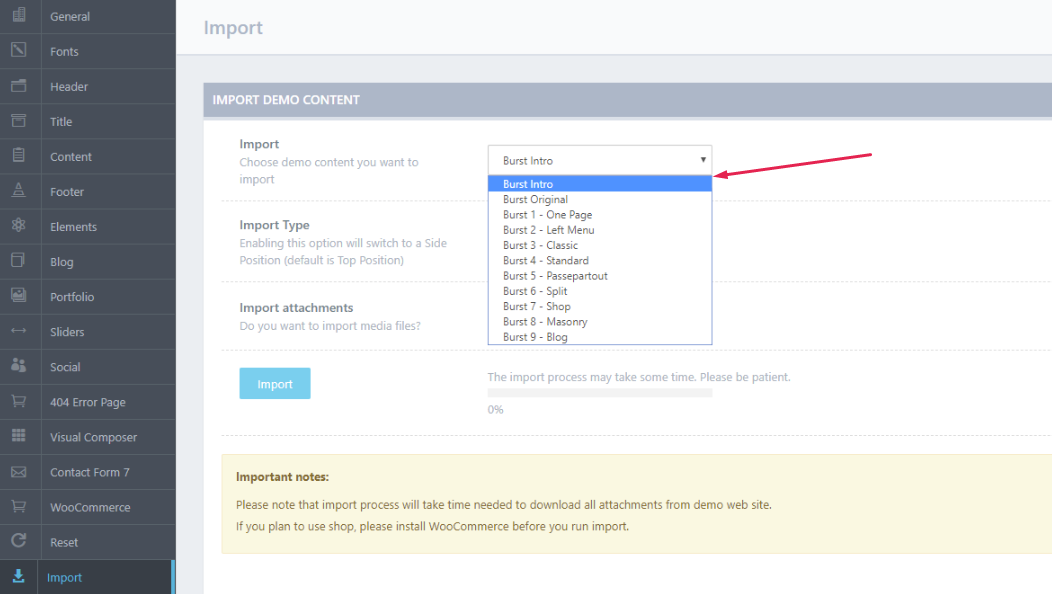
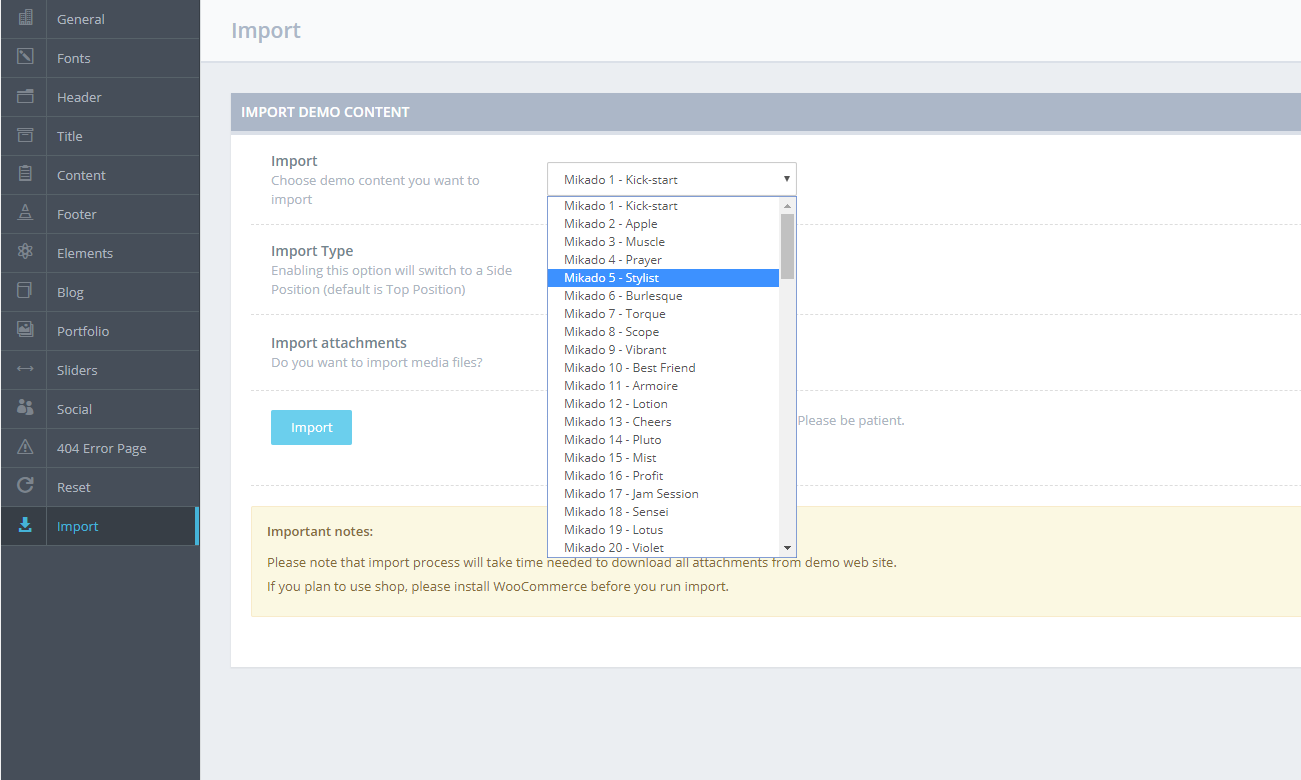
The demo options depicted here can differ from the ones available for your theme
After choosing a demo you wish to import, you also need to pick an Import Type – in the event that you wish to import the entire demo content for the selected demo, (pages, posts, widgets, options) pick the All option. 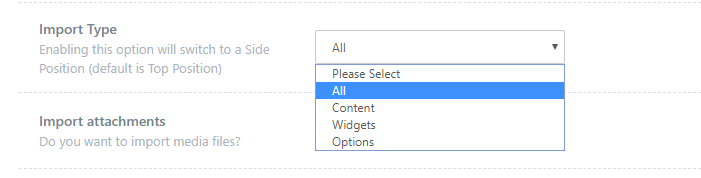
You also need to set the Import attachments option to Yes in order to obtain the entire content from this demo (media library content).

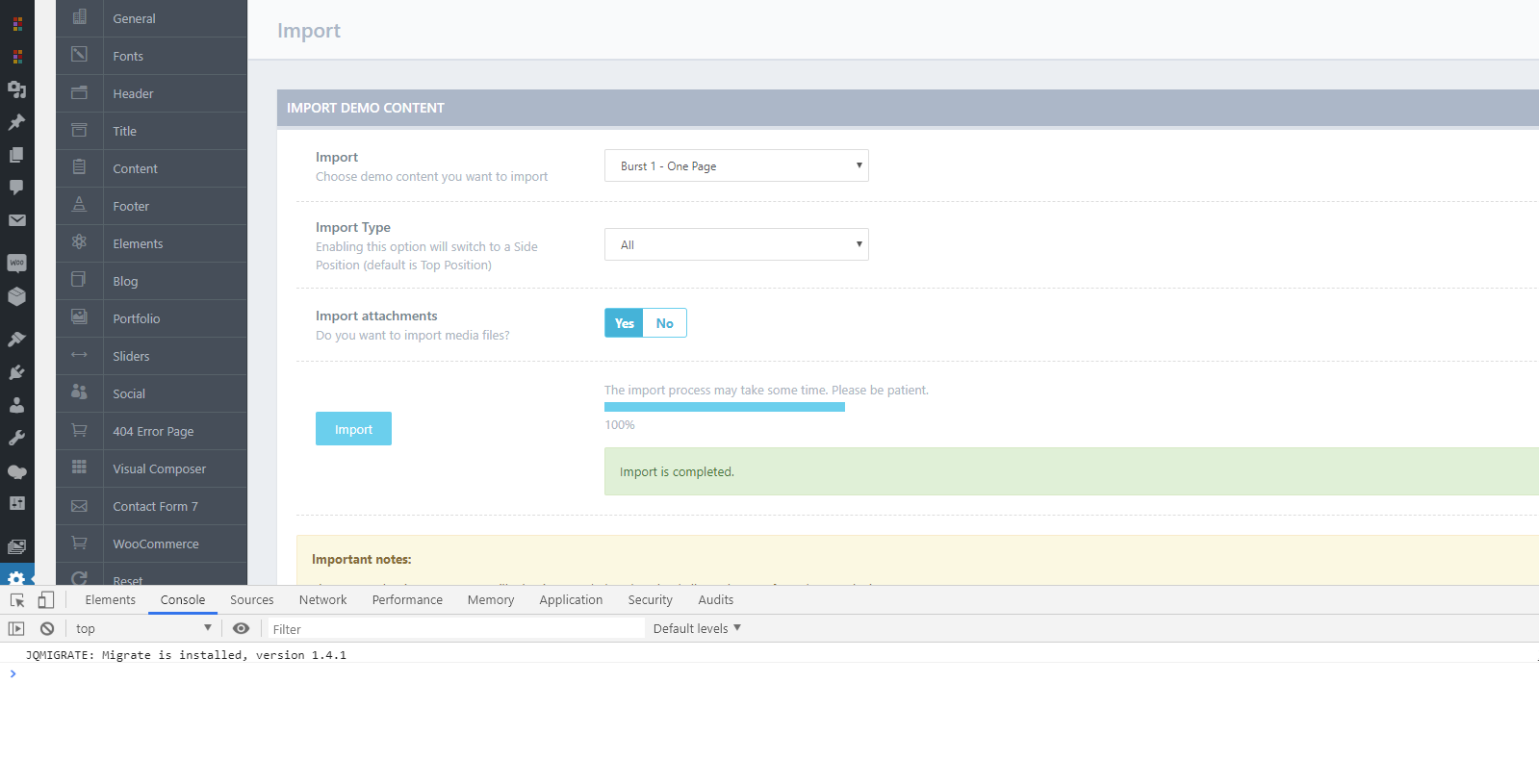
Another useful thing you could do prior to importing the demo content is running the Console (f12 key if you are using Chrome), so you could monitor the import process.
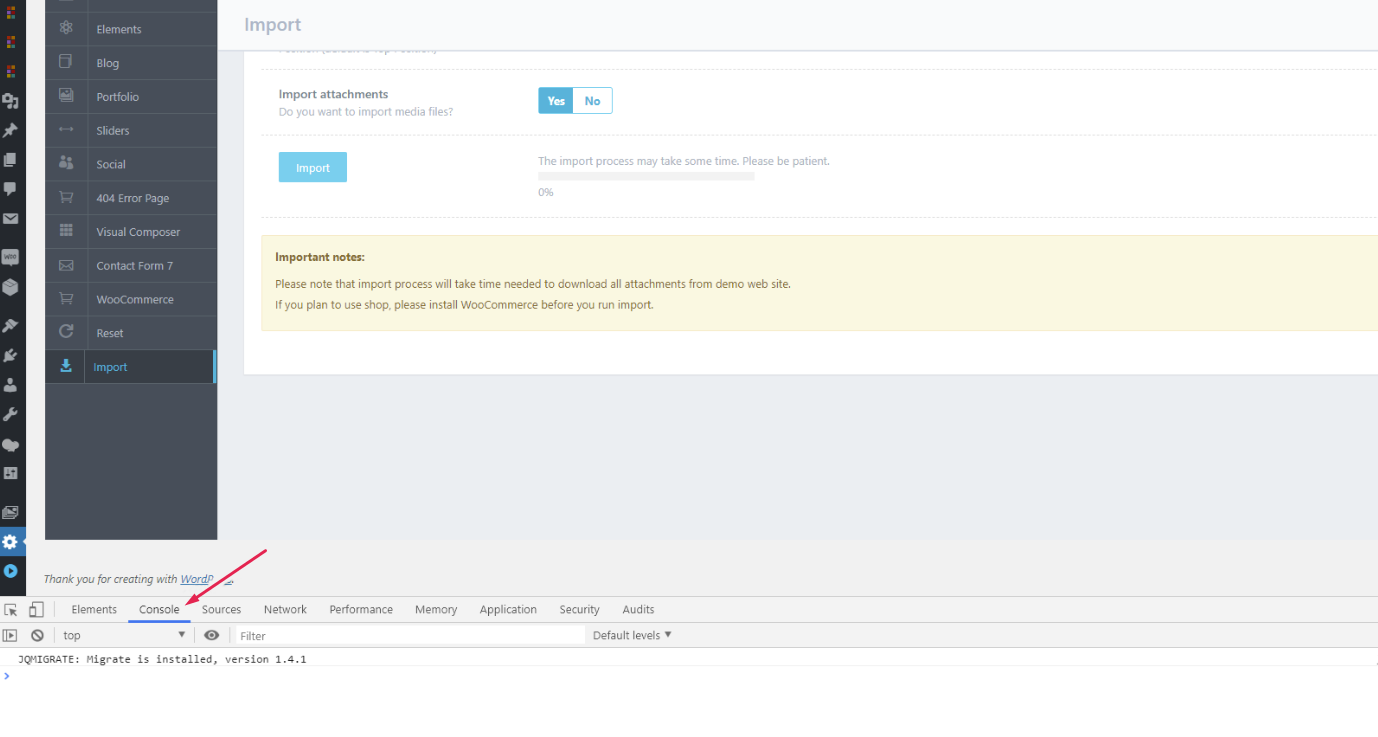 After this you can click the Import button to start importing the demo of your choosing.
At times, you could run into the following error in the console when importing the demo:

All you should do if this occurs is refresh the page and start the import process once more. At the end you should get the following message:
 When the import process has successfully finished, you will be able to see the imported template by navigating to Pages > All Pages.
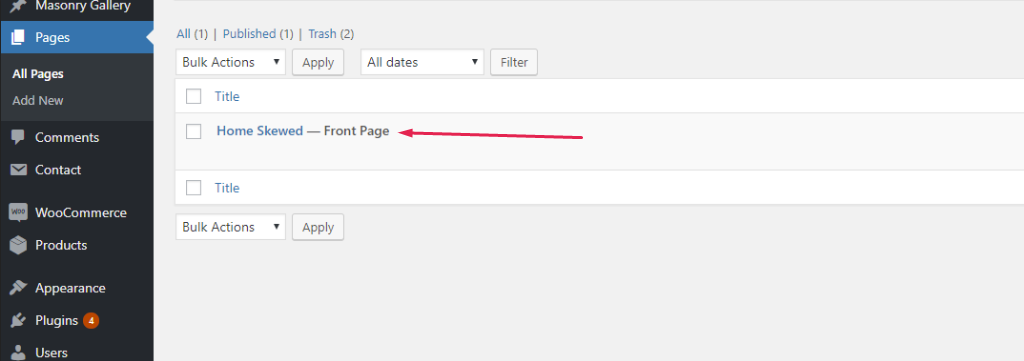
The example depicted here shows a demo with a one page template